Overview
LedScreen drives one or more full-screen displays for athletics events — heat results, a live scoreboard, finish photos, a race clock, and Atletiek.nu results — from timing feeds like FinishLynx, TimeTronics, Isolynx and Ipico RFID mats. It runs as a small program on a Windows PC and exposes its controls as a web page, so you operate it from a phone, tablet, or laptop on the same network as that PC.
There are two views of that same web page:
- / — the Control page. What you use during a competition: switch each screen's content and reset the clock. Nothing else.
- /admin — the same page with every configuration tab unlocked: displays, screens, timing systems, results feeds, presets, and system controls. Set this up once before the event.
In your browser this looks like http://<computer's IP>:8001/ and http://<computer's IP>:8001/admin. The port (8001 here) is whatever was configured for this installation.
Security note
No login on either page
/ and /admin ask for no username or password — they're the identical page, and /admin simply reveals tabs that are hidden on /. Anyone on the same network who opens /admin gets full control: they can change timing settings, reset the scoreboard, or shut the program down.
Keep this on a trusted event or venue network only — never forward this port to the open internet, and treat the URL itself as something you don't hand out publicly.
Reading this manual
Every setting below is tagged with when it takes effect. Buttons and checkboxes without a tag apply the instant you use them.
Control page
/ and /admin — tab: Control
This is what you leave open during the event. It's a live table, refreshing once a second, with one row per screen and one column per thing that screen can show.
Switching what a screen shows
Click the dot in a screen's row under the mode you want. The screen changes immediately — no save step.
If other computers on the network are registered as peers (see Peers), their screens appear as extra rows here too, grouped by the tags set on the Peers tab.
LineScan — an image on the finish photo
A finish camera records one vertical line per frame and puts the lines side by side in the photo. LineScan shows the screen's Logo image one column at a time, filling the whole screen, so wherever the camera's line crosses the screen it records that column, and the image builds up in the finish photo. The image keeps looping.
- The column changes with the camera's frame rate: LineScan camera fps, or the rate FinishLynx reports when that is empty.
- The image is scaled to the screen's height, and the number of columns it plays is its width after that scaling. A 1024 × 1024 pixel icon on a screen 128 pixels high is 128 columns, not 1024.
- A screen changes about 60 times a second, much slower than the camera (often 1000 frames a second or more), so every column stays on for one screen refresh, which is
camera fps ÷ 60camera frames, rounded up. No column is skipped. - That gives
width in the photo = columns × frames per columnlines andtime = columns × frames per column ÷ camera fpsseconds. The time is shown next to LineScan camera fps on the Screens tab. - Use an image with strong contrast; a test shot first shows how it looks.
LineScan examples
A 1024 × 1024 pixel icon on a 128 pixel high screen (128 columns), at different camera frame rates:
| Camera fps | Frames per column | Width in the photo | Time to show |
|---|---|---|---|
| 1000 | 17 | 2176 lines | 2.18 s |
| 1200 | 20 | 2560 lines | 2.13 s |
| 1500 | 25 | 3200 lines | 2.13 s |
| 2000 | 34 | 4352 lines | 2.18 s |
| 3000 | 50 | 6400 lines | 2.13 s |
The time hardly changes with the camera: every column stays on for one screen refresh, about 1/60 s, so the image takes about 2.1 s. A faster camera records more lines in that time, so the image is wider in the photo.
LineScan in a finish photo
Simulated with a real 1200 fps finish photo (0.84 s wide), re-scaled to each frame rate. The dark blue strip (the screen, as the camera sees it) shows what LineScan records with the icon; the athletes stay in front of it. The yellow bracket marks one pass of the image. Scroll sideways for the wider photos.


Other controls on this page
- set 0.0 — zeroes the live scoreboard clock back to a fresh, unstarted state. It always arms the heat whose startlist arrived most recently, even if results for an earlier heat are still coming in from a second timing feed.
- reaction — shows the reaction times of the current heat for 15 seconds on every scoreboard with Show Reaction Times on. Only shown when at least one screen has that option on. See Reaction times & false starts.
- Start Clock — sends a manual start signal to the race clock. Only shown when no external timing system (FinishLynx or TimeTronics) is doing the starting for you.
- preview checkbox — shows a live, refreshing thumbnail of each screen's actual output right in its row, so you can confirm what's on the wall without walking over to look.
- Admin only gear icon on a row — opens that screen's own /admin page in a new tab (useful when it belongs to a peer computer).
- ☏ help icon, bottom-left — sends a help request straight to the developers if you're stuck.
Display
/admin — tab: Display
Global settings for how LedScreen draws on this computer's monitors. Everything here needs Save All.
| Field | What it does |
|---|---|
| Display | Which physical monitor LedScreen opens its panels on. |
| Panel Width / Height | Pixel grid size used when laying screens out on the Screens tab preview. |
| Background | Default background colour behind everything shown. |
| Atletiek.nu Background | Background colour used specifically behind Atletiek.nu results. |
| NDI | Turns on NDI video output, so other software on the network can receive LedScreen's picture as a video source. |
| TopMost | Keeps the display panels pinned above every other window. |
| Media Path | Folder LedScreen looks in for images and media files. |
| MQTT | Address (ip:port) of an MQTT broker to sync state with, if you use one. |
| IsoLynx | IP address of the IsoLynx server. Only shown when IsoLynx is enabled. |
| CustomUrl | Fallback web address shown by the Custom mode on the Control page. |
Screens
/admin — tab: Screens
Add, size, and arrange each display panel this computer manages.
- Number of Screens Save All — how many panels this computer manages. Changing it adds or removes a settings column below.
| Per-screen field | What it does |
|---|---|
| Name | Label for this screen, shown throughout the app. |
| Z-order | Stacking position relative to other screens. |
| Screen Width / Height | Panel size in pixels. |
| Screen Rotate | Rotates the panel's content: 0°, 90°, -90°, or 180° — for screens mounted sideways. |
| Logo/Dia/Atletiek.nu Repeat | How many times the logo, slideshow image or Atletiek.nu page is shown side by side across the screen. For Atletiek.nu the first part of the screen (width ÷ repeat) is copied into the others, so set up that screen on Atletiek.nu for the smaller width. |
| Logo | Which uploaded image this screen's Logo and LineScan modes show. |
| LineScan camera fps | The finish camera's frame rate. Leave empty to use the rate FinishLynx reports (1000 until it has reported one). The time the image takes to show is displayed next to it. See LineScan for examples. |
| LineScan mirror | Sends the image's columns from right to left. Turn it on if the image comes out mirrored in the photo. |
| NDISrc | Which discovered NDI video source this screen's NDI mode shows. |
| Custom URL | Per-screen override of the Custom mode's address. |
Each screen has its own save button next to its column, separate from Save All at the bottom.
Laying screens out visually
Tick Preview to turn the settings into a set of draggable boxes you can position by hand — drag a box to move that screen, or right-click it and choose Set Location to type exact X, Y, width and height. Boxes snap to the grid set by Panel Width/Height on the Display tab. With Preview on, each box also shows a live, refreshing screenshot of what that screen is actually displaying.
Scoreboard
/admin — tab: Scoreboard
Connects LedScreen to your timing system and controls what the live results board shows.
Event and timing setup
| Field | What it does |
|---|---|
| Event Name | Title shown on the scoreboard. |
| Finish Photo Path | Folder your finish-photo camera (e.g. FinishLynx) saves images into. A mapped network drive (e.g. Z:\Results) works too: LedScreen runs with administrator rights and can't see drive letters mapped by your user, so it looks up the network path behind the letter itself. |
| ReacTime .rte Path | Folder where ReacTime writes its .rte files. Needed for reaction times and false-start detection from ReacTime; leave empty to turn that off. A network folder that drops out is picked up again automatically once it's reachable. See Reaction times & false starts. |
| Photos/graphs from peer | When a finish photo, reaction times or start graphs aren't available on this computer (no access to those folders), ask the computer it receives its scoreboard from. Only done when a page asks for them. On by default. |
| Font | Typeface used on the scoreboard. |
| FinishLynx / TimeTronics / Argus / Isolynx | Which timing system LedScreen listens to. Restart |
| Sync SB to Peers Save All | Pushes this computer's live scoreboard to any registered peer computers, so everyone's boards match. |
| Sync SB via Relay Save All | Shares the live scoreboard through an online relay server instead of a direct peer connection — for computers that can't reach each other directly (different networks, behind NAT). Every computer that should share a board needs this on and the same Relay event key. Needs internet access. |
| Relay server Save All | Which relay server Sync SB via Relay connects to. All computers sharing a board must pick the same server. |
| Relay event key Save All | Shared secret that groups computers on the relay: only computers using the exact same key exchange scoreboard data. Pick a unique key per event and don't share it publicly. The relay stays off while this is empty. |
| Lap distance (m) Save All | Track distance per lap, used for split and lap counting. |
- Fake start gun Debug only — triggers a start signal manually, for testing without a real gun.
- Read All Lif Files — re-reads every FinishLynx result file from disk, in case results were updated outside LedScreen.
- Result page link — opens the Track & Field Results page (/finishPhotos) in a new tab: every finished race with its finish photo and a downloadable race report. Also reachable from Open result page in the tray icon's menu.
- Set 0.0 — same clock reset as on the Control page.
- reaction — same as the reaction button on the Control page. If no reaction times are found for the current heat it tells you so, and whether the ReacTime folder is currently unreachable.
Per-screen scoreboard display Save All
| Scoreboard Lines | The total number of lines on this screen: the result rows, plus 1 for the title when Show Title is on, plus the photo lines when Show Finish Photo is on. To set just the number of result rows and let LedScreen add the rest, use /sblines. |
| Scoreboard Listen to MQTT | Drive this screen's scoreboard from MQTT messages instead of the local timing feed. |
| Show Title | Shows the event title above the results. |
| Show Finish Photo | Shows the finish-line photo alongside results, with a field for how many lines it spans. |
| Show FirstNames | Includes athletes' first names, not just surnames. |
| Show Reaction Times | Lets this screen show the heat's reaction times when the reaction button is pressed. Times come from ReacTime when the ReacTime .rte Path is set, otherwise from what FinishLynx sends with the results. |
| Auto at False Start | Shows the reaction times automatically for 15 seconds as soon as ReacTime reports a new false start. Needs Show Reaction Times. On by default. |
| Show All Splits | Shows intermediate split times, not just the finish time. |
| KeepTimeRunning | Keeps the race clock counting up after the leader finishes, instead of stopping. |
| Show Results Only | Hides the running clock and shows only finished results. |
| TOD Background Image | On the time of day (TOD), shows this uploaded image as the complete background of the screen, replacing the normal background, behind the clock. The event name is not shown then. Separate from the Logo setting; (none) keeps the normal background. |
| TOD Text % of Screen | With a TOD Background Image: the share of the screen height (10–90, default 40) at the bottom of the screen for the clock and event name, so the top part of the image stays clear. |
Reaction times & false starts
With ReacTime connected (ReacTime .rte Path set), LedScreen reads every start of the current heat, including recalled ones. On a screen with Show Reaction Times:
- Pressing reaction replaces the results for 15 seconds with every athlete's reaction time, each with a bar showing how it compares to the slowest.
- With Auto at False Start on, the same view appears by itself for 15 seconds when ReacTime detects a false start. The athlete who false-started is shown in red.
- After the 15 seconds the screen goes back to its normal view.
Without ReacTime, the button shows the reaction times FinishLynx sent with the results (if any). Peer computers that receive the scoreboard show the same reaction view at the same time.
Setting the lines from another program
Open /sblines/{screen}/{rows} to set how many result rows scoreboard screen {screen} shows. LedScreen sets Scoreboard Lines to the rows plus 1 for the title (when shown) plus the photo lines (when the photo is shown), saves, and reloads the screen right away.
Optionally add ?title=1 or 0, photo=1 or 0, and photolines=n to change those settings in the same call. Anything left out keeps its current setting.
| Address | Result |
|---|---|
| /sblines/2/4 | Screen 2 with title on and a 3-line photo: 4 + 1 + 3 = 8 lines. |
| /sblines/2/6?title=1&photo=0 | Title on, photo off: 6 + 1 = 7 lines. |
The answer is JSON with the screen's new settings, e.g. {"screen":2,"athleteLines":4,"ShowTitle":true,"ShowPhoto":true,"photoLines":3,"totalLines":8}. An unknown screen gives an error 404; rows below 1 or an invalid photolines give an error 400.
Remote link next to a screen's column opens a plain, standalone results board for that screen in a new tab — handy for sharing a results view with someone who doesn't need the rest of the admin page.
Lap Counting
/lapcounting and /lapcounter — not an admin tab
For events that run more laps than the timing system itself tracks — distance races on a short track, road relays, and the like — two extra pages let a volunteer tally laps by hand while LedScreen keeps count: a read-only /lapcounting board for projecting, and a touch-friendly /lapcounter entry page for the volunteer holding the phone. Neither is linked from the admin tabs yet, so open them directly by typing the URL (same host and port as everything else, e.g. http://<computer's IP>:8001/lapcounter).
Both pages follow the same live event feed the scoreboard screens use, so they always show the currently running race with no extra setup — the only configuration is the Lap distance (m) field on the Scoreboard tab. Total laps for the current race is that race's distance divided by the lap distance, rounded up.
The board — /lapcounting
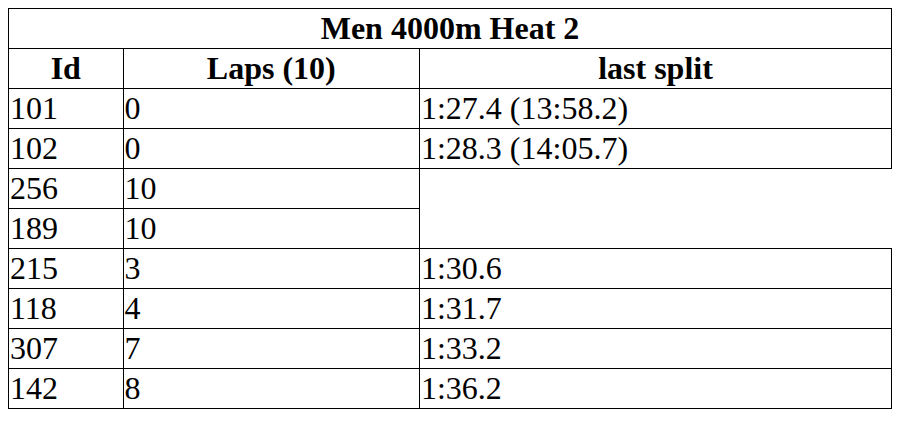
A plain, large-text table meant to be projected or put on a spare screen: BIB number, laps remaining, and the time of each runner's last recorded split. It's read-only — nothing to tap here.
Manual entry — /lapcounter
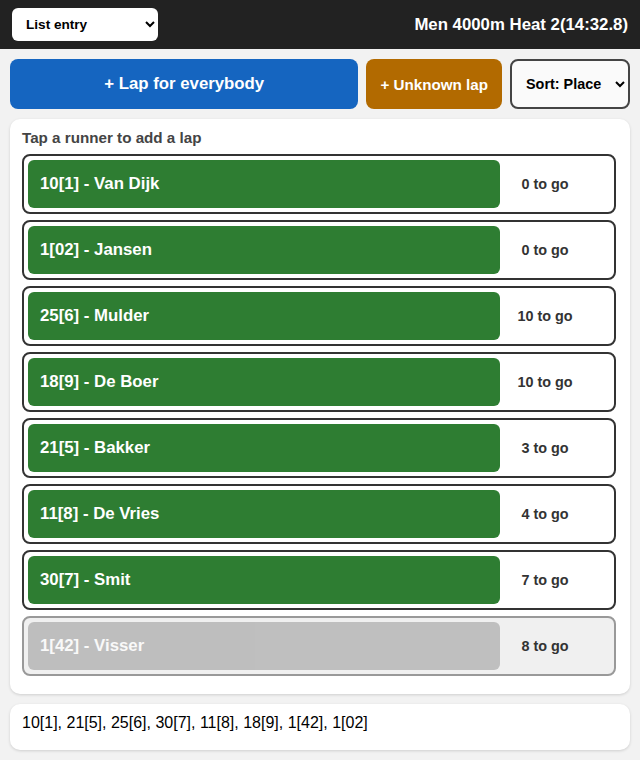
What the lap counter actually uses, one tap per runner per lap. The viewModeSelect dropdown at the top switches between five layouts:
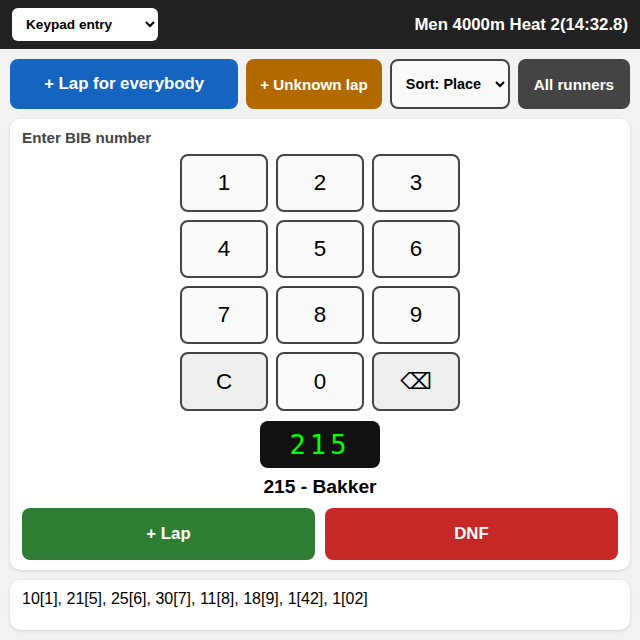
- Keypad entry — type a BIB number on the on-screen or physical keypad; as soon as it uniquely matches a runner, their name and + Lap / DNF buttons appear. Several runners sharing a typed suffix show as a row of candidate buttons to disambiguate instead.
- List entry — every runner as a row, sorted by place or BIB (Sort dropdown); tap a row to add a lap for that runner. Greyed-out rows have been marked DNF.
- Finish order — runners who've completed all their laps, in the order they finished.
- My local order — the order laps were tapped on this device, independent of what the server has confirmed; Send my order to timing desk pushes it over if the two ever need reconciling.
- Unresolved laps — a lap added with + Unknown lap (a timestamp with no BIB attached yet, e.g. a tight pack where only the leader was legible) waits here until it's matched to a runner.
- + Lap for everybody — adds one lap to every runner still racing at once, for a mass start/finish lap.
- All runners — expands the full roster below the current view, for reference.
Works offline. Taps are queued in the browser (pending counter, top right) and retried automatically every few seconds and whenever the device comes back online, so a dead spot in venue WiFi doesn't lose a lap — it just sends late. Retry forces an immediate attempt.
Ipico
/admin — tab: Ipico
Settings for reading Ipico RFID timing mats. Only relevant if your event uses Ipico chip timing. Save All
| Field | What it does |
|---|---|
| IP | Address of the Ipico reader/decoder. |
| Cooldown (s) | Minimum time before the same tag can be read again — filters out duplicate reads. |
| TagMapPath | File mapping chip tags to bib numbers. |
| EventID | Which event these reads belong to. |
| Split Time Results — EventID | Event ID used specifically for split-time reporting from intermediate mats. |
| Split Time Results — Distance Filter | Distance (e.g. 21K) used to filter which mat readings count as splits for that distance. |
| iPico Wiz — iPicoWiz | Show the results from iPico Wiz on the scoreboard screens instead of the results of a timing system, see below. |
| iPico Wiz — iPico Wiz PC | IP address of the PC running the iPico Wiz program (use 127.0.0.1 when iPico Wiz runs on this computer). LedScreen connects to the same livestream as iPico Wiz Display, port 11111; add :port if yours is different. |
| iPico Wiz Screens — Distance Filter | Per screen: only show the iPico Wiz results of this distance. Empty: the Distance Filter above, and when that is empty too, all distances. |
| iPico Wiz Screens — Checkpoint Filter | Per screen: show (and rank on) the time at this checkpoint, using the checkpoint name from iPico Wiz. Athletes that have not reached it yet are left out. Empty: the finish result, and athletes that have not finished show the time of the last checkpoint they passed (anything but the finish) as a split, behind the finishers and ordered by how far along the course they are. |
These two filters only apply when the iPicoWiz checkbox is on: the screens then show the results read from the iPico Wiz PC over the local network, refreshed every 5 seconds, instead of the results of a timing system such as FinishLynx. iPico Wiz does not send its race clock, so press Start Clock on the Control tab at the gun (it also sends a start packet to iPico Wiz, when iPico Wiz is connected to the manual Ipico reader of LedScreen): the screens then show the running time until the first athlete has a result for their distance and checkpoint, and then switch to the results, with the running time at the top right of the title (screens with Show Title). set 0.0 clears the clock, and the laps of the lap counter, for the next race. There is one clock for all screens.
When FinishLynx is on as well, the screens show the iPico Wiz results only while the current FinishLynx event is named like a distance in the iPico Wiz data (all of it, not just the filters); for any other event, such as a sprint with wind, FinishLynx shows its own event as usual. The start of FinishLynx also starts the clock of the iPicoWiz screens, just like Start Clock does (within a few seconds after the start; the clock counts from the running time FinishLynx reports, so the clocks of the PCs need not agree).
With FinishLynx as the timing system, the FinishLynx start to Ipico checkbox on the Scoreboard tab sends the start time FinishLynx reports to the manual Ipico reader as a start packet, once per race, within a few seconds after the start.
The contestants of the general Distance Filter (all distances when empty) are also the runners of the current event, so the lap counter works with iPico Wiz: it lists them and counts their laps from the moment of Start Clock. When FinishLynx already has runners in its event, the lap counter lists those instead. If the name of a FinishLynx event is the same as a distance filter, it is the same race: the clock and the laps of the lap counter then belong to that FinishLynx event and its start list. A split of the lap counter (or the reader) is shown on screens with Show All Splits for a few seconds, like without iPico Wiz, and then the screen shows the iPico Wiz results again.
The result page gets an event for each distance in the iPico Wiz data, named after the distance and kept up to date while the results come in: the finishers with their place and finish time, DNF/DNS/DQ without a place, athletes that have not finished without a result, and the checkpoints each athlete passed as split times. The event stays when its distance is no longer in iPico Wiz. A distance that FinishLynx has an event of with the same name is left out: that FinishLynx event is the same race and has its own results.
Images
/admin — tab: Images
Manages the pictures available for logos and the slideshow (Dia) mode.
- Reload Images — rescans the media folder for new images and refreshes the list of available NDI video sources.
- Import from download — asks for an event ID and whether to archive existing images first, then downloads that event's image set automatically.
- Push images to peers — copies every image in this computer's media folder to all registered peer computers. It first asks whether the peers should archive their existing images before receiving the new set.
- The checklist below lists every available image — tick one to include it in the rotating slideshow. Save All
File names for different screen sizes
The same picture can have a file for each screen size, so it is not stretched out of shape on a screen with another shape. Put the size, in pixels, at the end of the file name, just before the extension:
<name>-<width>x<height>.png
- <width> and <height> are plain numbers (no px) joined by a lowercase x, and the size is the size of the screen, Screen Width / Height on the Screens tab. Make the picture exactly that many pixels.
- LedScreen looks for the last two numbers in the file name, right before the extension: <width>x<height>. Everything before them is the name of the image. Numbers earlier in the name do not count, so logo1_2x1.jpg is the image logo1.jpg with size 2x1.
- The numbers can also be just the shape instead of the size in pixels: 2x1 is twice as wide as high, 1x1 square, 1x3 three times as high as wide. Such a file is used for every screen with that shape, whatever its size, and is scaled to the screen; make the picture itself in that shape, at any size.
- A name that ends in a digit needs a size. Without one, that last digit is read as the size: logo1.jpg and logo2.jpg would both become the one image logo.jpg. Name them logo1_2x1.jpg and logo2_2x1.jpg, or end the name with a letter (logo1a.jpg).
- The size is joined to the name with a - or a _. The extension can be .png, .jpg, .jpeg or .gif.
- Files with the same name before the size are one image: the lists (Logo, TOD Background Image, the slideshow checklist) show it once, as the name without the size, e.g. meeting-logo.png.
- Each screen shows the file that fits it best: first one with the same shape (width : height) as the screen and the same height, otherwise the one with the closest shape. A file without a size in its name is used last.
- Put the files in the media folder and press Reload Images to pick them up.
Examples, for an image called meeting-logo on three screen sizes:
| Screen size | File name |
|---|---|
| 192x96 px | meeting-logo-192x96.png |
| 32x96 px | meeting-logo-32x96.png |
| 256x256 px | meeting-logo-256x256.png |
Examples with the shape instead of the size, for two logos that each have a wide, a square and a tall version:
| File name | Image | Used on |
|---|---|---|
| logo1_2x1.jpg | logo1.jpg | Screens twice as wide as high, e.g. 192x96 or 256x128. |
| logo1_1x1.jpg | logo1.jpg | Square screens, e.g. 256x256. |
| logo1_1x3.jpg | logo1.jpg | Tall screens, e.g. 32x96. |
| logo2_2x1.jpg | logo2.jpg | The second logo on wide screens. |
| logo2_1x1.jpg | logo2.jpg | The second logo on square screens. |
| logo2_1x3.jpg | logo2.jpg | The second logo on tall screens. |
The lists show just logo1.jpg and logo2.jpg. A screen with a shape there is no file for gets the closest one: on a 384x96 screen (4 times as wide as high) logo1_2x1.jpg is used, stretched to the screen. A file with the exact pixel size of the screen (e.g. logo1_192x96.jpg) goes before a file with only the shape.
More examples: tod-background-192x96.png, tod-background-32x96.png and tod-background-256x256.png are the one image tod-background.png for a TOD Background Image; with an underscore, logo1_32x96.png works the same as logo1-32x96.png, and a digit in the name is fine as long as the size comes after it.
Peers
/admin — tab: Peers
For events where several computers each drive their own screens but need to act as one system — e.g. a Control page that shows every screen everywhere, or a scoreboard shared across venues.
| Field | What it does |
|---|---|
| Peers | The list of other LedScreen computers this one talks to. Type an ip:port and press + to add one; press − on an entry to remove it. |
| Send Groups Computer | Tags this computer attaches to the control commands it sends. |
| Receive Groups Computer | Tags this computer listens for from peers. |
| Send Groups Screen | Per-screen tag(s), used to group rows on the Control page. |
Everything here needs Save All.
Atletiek.nu
/admin — tab: Atletiek.nu
Pulls live results from the Dutch athletics results site Atletiek.nu onto a screen.
Warning: a "browser" will be created for each event/letter combo, so for each combo use the same size to prevent weird issues.
Events
A table of events this installation can show, each with a Name, an Authlink code, and an eventId. Click the eventId to open that event's screen management on athletics.app in a new tab. Add a row and press Save to register a new event; press − to remove one. Events are shared automatically with any registered peer computers.
Switching the event from another program
Open /event/{screen}/{eventId} to switch a screen to one of the events in the table, without pressing Save All. LedScreen saves it and swaps the screen to the browser of that event right away; the screen stays on its current show. The first time a screen shows an event it also gets AutoLink, so it doesn't wait with a code on the screen. If the screen is already on that event, nothing reloads.
The answer is JSON, e.g. {"screen":0,"eventId":41955,"name":"NK","changed":true,"autoLink":false}. An unknown screen or an event that isn't in the table gives an error 404. /events lists the events, e.g. [{"eventId":41955,"name":"NK"}].
Per-screen settings Save All
| Event | Which of the registered events this screen shows. |
| Letter | Filters results to one heat or group letter. |
| Code | Read-only colour badge. Screens with the same colour have the same Event and Letter, so they share one browser and always show the same content. |
| AutoLink | Sends an auto request based on the two fields above. Note: use this only after saving the two settings above first. |
| Key | Read-only identifier for this screen, only used when manually linking. |
| AU Scale Advanced | Zoom factor applied to the Atletiek.nu page on this screen — below 1 fits more on screen, above 1 enlarges it. |
| AU Width / Height Advanced | Size, in pixels, the scaled Atletiek.nu page should fill. Used together with AU Scale. |
The Advanced rows only appear when AUOveride is turned on in this installation's config file; there's no switch for it on the admin page. Without it, AU Scale/Width/Height are ignored.
Ruler
/admin — tab: Ruler
Configures the on-screen measuring ruler used to line up physical distance markers on the LED wall — for example against a track's lane boards. Shown live via the Ruler mode on the Control page. Save All
| Field | What it does |
|---|---|
| Pixels per meter | Calibrates the ruler's scale to match the real display. |
| Offset start ruler till first board | Distance, in meters, from the ruler's zero point to the first physical marker board. |
| Offsets | The list of meter marks to draw (e.g. 1.00, 2.00, 5.00) — add or remove marks freely. |
| Right to left | Mirrors the ruler's direction, for boards mounted the other way round. |
Talm
/admin — tab: Talm
Configures the Talm board — a results/photo-finish presentation panel — per screen. Save All
| Field | What it does |
|---|---|
| Width / Height | Size of the Talm board. |
| Screens | Number of Talm screens. |
| Vertical | Orients the board vertically instead of horizontally. |
| Background | Board background colour. |
| Talm | Turns the Talm board on or off. |
| Flag | Shows a flag indicator on the board. |
| Depth / Height (pole) | Physical pole depth and height settings for the board's measuring display. |
| Logo / Image / Pauze logo | Images shown on the board and during a pause. |
| Afzet IP | Address of the start/finish relay device this board is wired to. |
| Wind | Adds a live wind panel to the board: the wind speed with m/s underneath and an arrow showing where the wind blows, drawn on a small runway so the direction is clear relative to the run-up. |
| Wind IP | Where the wind sensor is connected: an IP:port (e.g. 192.168.1.10:502) or a serial port (e.g. COM6). Or pick an online weather station from the list (KNMI stations via Buienradar, e.g. De Bilt, stored as STATION:6260): this needs internet, shows the station's 10-minute average wind and updates every 10 minutes, so Wind time does not apply. Screens may share one sensor or station. |
| Runway heading (°) | Only shown when an online station is picked as Wind IP. The compass direction the athletes run in (0° north, 90° east, 180° south, 270° west), so the station's wind is turned to the runway. A wired sensor does not need it: it is mounted with north along the run-up. |
| Wind time (s) | How many seconds of readings are averaged for the value shown (1–120, default 5). The panel updates every second. Not used for an online station, which already gives a 10-minute average. |
| Wind run-up direction | Which way the run-up points on the first wind panel: 0° up, 90° right (default), 180° down, 270° left, or any 60° step (60°, 120°, 240°, 300°) for a runway at an angle. Match it to how the board faces the runway. |
| Wind next panel + | Degrees added to the run-up direction for each following wind panel, for boards that face different ways. |
| Wind along runway | Off: the total wind speed, with the arrow showing where the wind blows. On: only the part of the wind along the runway, as in athletics: + is tailwind, - is headwind. The arrow still shows where the wind actually blows. |
| MQTT Device | MQTT device identifier for this board. |
| Listen to screen | Mirrors another screen's data feed instead of its own. |
- Controlpanel link — opens a standalone operator page for this Talm board, with its own start-time and action buttons.
- Live view checkbox — shows a live, refreshing preview of the board next to its settings.
Title
/admin — tab: Title
Create reusable title cards/banners you can put on a screen — a sponsor slide, an event name card, and so on.
Saved presets appear as pills at the top of the tab; click one to preview it, or its × to delete it.
| Field | What it does |
|---|---|
| Title name | Identifier for this preset. |
| Background | Image shown behind the title text. |
| Font size | Text size, in pixels. |
| Font Color | Text colour. |
| Text | The title's content, over multiple lines if needed. |
- Save Title — stores this as a named preset for later, without changing what's live.
- Publish — puts this title on screen right now.
System
/admin — tab: System
Presets, updates, and the controls that affect the whole program rather than one setting.
Config presets
- Select config + Load — switches every setting to a previously saved configuration.
- Save current config — saves everything currently set as a new named preset.
- reset config — resets all settings back to their defaults. Asks for confirmation first — there's no undo.
Program controls
- Restart — restarts LedScreen. Needed after changing anything marked Restart.
- Check for update — checks for a newer version and reloads the page to show it if one's found.
- Update — installs the update that was found. Only appears once one is available.
- Update ALL! — tells every registered peer computer to update as well, then updates this one. Handy for bringing a multi-PC setup to the same version in one go.
- ShutDown — closes LedScreen entirely.
- download beta releases — opts this installation into pre-release versions when checking for updates.
- Auto start on boot — makes Windows start LedScreen automatically at startup, with administrator rights.
- Download newest LSS! — downloads the FinishLynx scoreboard script file needed to connect FinishLynx to LedScreen. See the Help tab.
- Force Synctime! — sets this computer's clock from an internet time server right now, useful before a race if the clock has drifted.
Help
/admin — tab: Help
A built-in, illustrated walkthrough for connecting FinishLynx to LedScreen: installing the scoreboard script, the network scoreboard port (8002), FinishLynx's remote-control port (2100), and where to point its finish-photo folder. Read this tab directly in the app when wiring up FinishLynx for the first time.
Debug
/ and /admin — tab: Debug Debug only
Only appears when Debug mode is turned on for this installation.
Scoreboard feed log. The big text box shows every line coming in from the timing feeds, live (refreshed every second). Each line is tagged with the IP address of the computer that sent it, so with two feeds connected (e.g. one PC for clock/startlist and one for results) you can tell them apart. The log only follows new lines while you're scrolled to the bottom; scroll up to read without it jumping. Clear empties the box.
Console. Type JavaScript into the box below it and press Send to run it directly inside the first live screen and see the result.
Both are meant for troubleshooting by whoever set the system up and aren't needed for normal operation.
Linked pages
A few standalone pages are reachable from the admin tabs above but aren't tabs themselves — each opens in its own browser tab, with nothing else around it.
| Page | Opened from | What it's for |
|---|---|---|
| Result page | Scoreboard tab; tray icon menu → Open result page | Every finished race with finish photo and a downloadable race report (/finishPhotos). Type in Event to show only races whose name contains that text, or in BIB to find one athlete across all races. When a race has reaction times they appear as extra columns — one per start, with false starts marked FS and the false-starting athlete in red. With ReacTime data, the 📈 button opens the start graph of all athletes, and clicking a reaction time opens that athlete's own curve — useful for the starter or referee to check a false start. |
| Remote link | Scoreboard tab | A plain, shareable results board for one screen. |
| Controlpanel | Talm tab | A standalone operator panel for a Talm board. |
| /lapcounting | Typed directly — no admin-tab link yet | The lap-counting projection board. See Lap Counting. |
| /lapcounter | Typed directly — no admin-tab link yet | Manual lap entry for the volunteer tallying laps. See Lap Counting. |